
A little help settling in
How to Listen
Your favorite story. Just the way you like it. Let’s make listening feel a little easier.
Choose your app, then open just the help you need. There’s no need to get everything set up at once.
Where do you listen?
Apple Podcasts
Start here if you listen in Apple’s Podcasts app on your iPhone. The browser player and Mac app have different controls.
Just want one story tonight? Start an episode, open its player, and set the sleep timer to stop when the episode ends.
Find and follow Nothing Much Happens
- Open Apple Podcasts and search for Nothing Much Happens.
- Open Nothing much happens: bedtime stories to help you sleep. You can also use the button below.
- Tap the Follow button on the show page. If it already shows that you’re following, you’re all set.
Find us again in Library → Shows. Following the free show does not start a paid subscription.
Open in Apple Podcasts ↗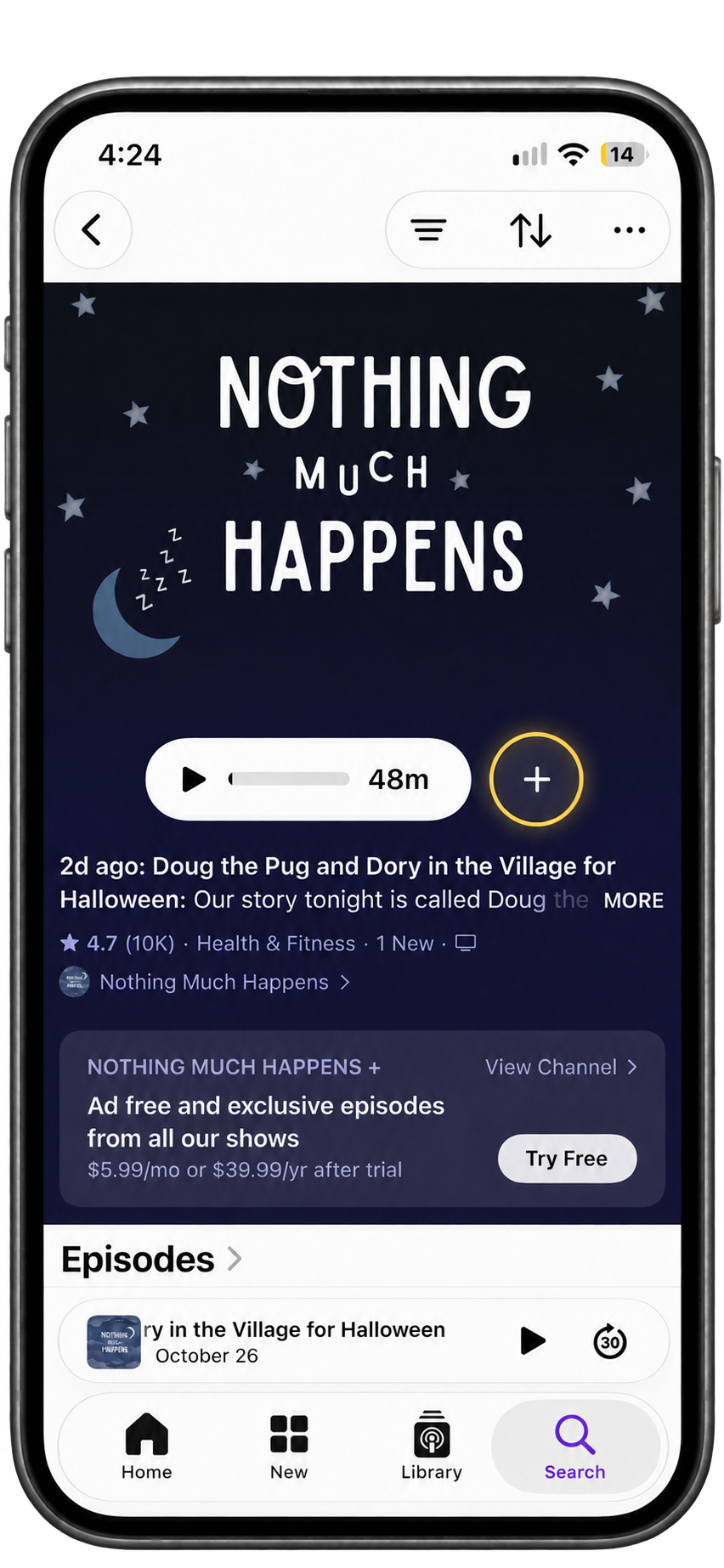
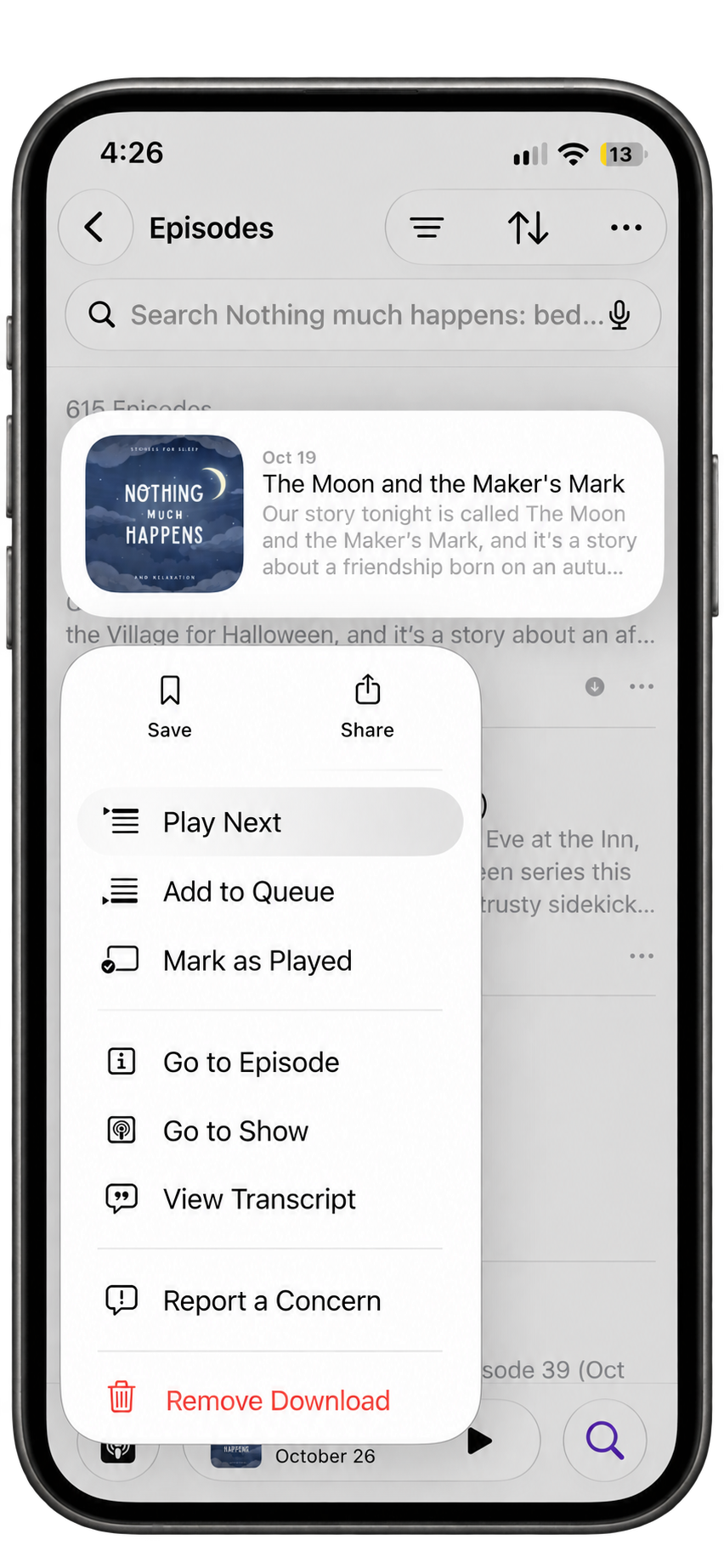
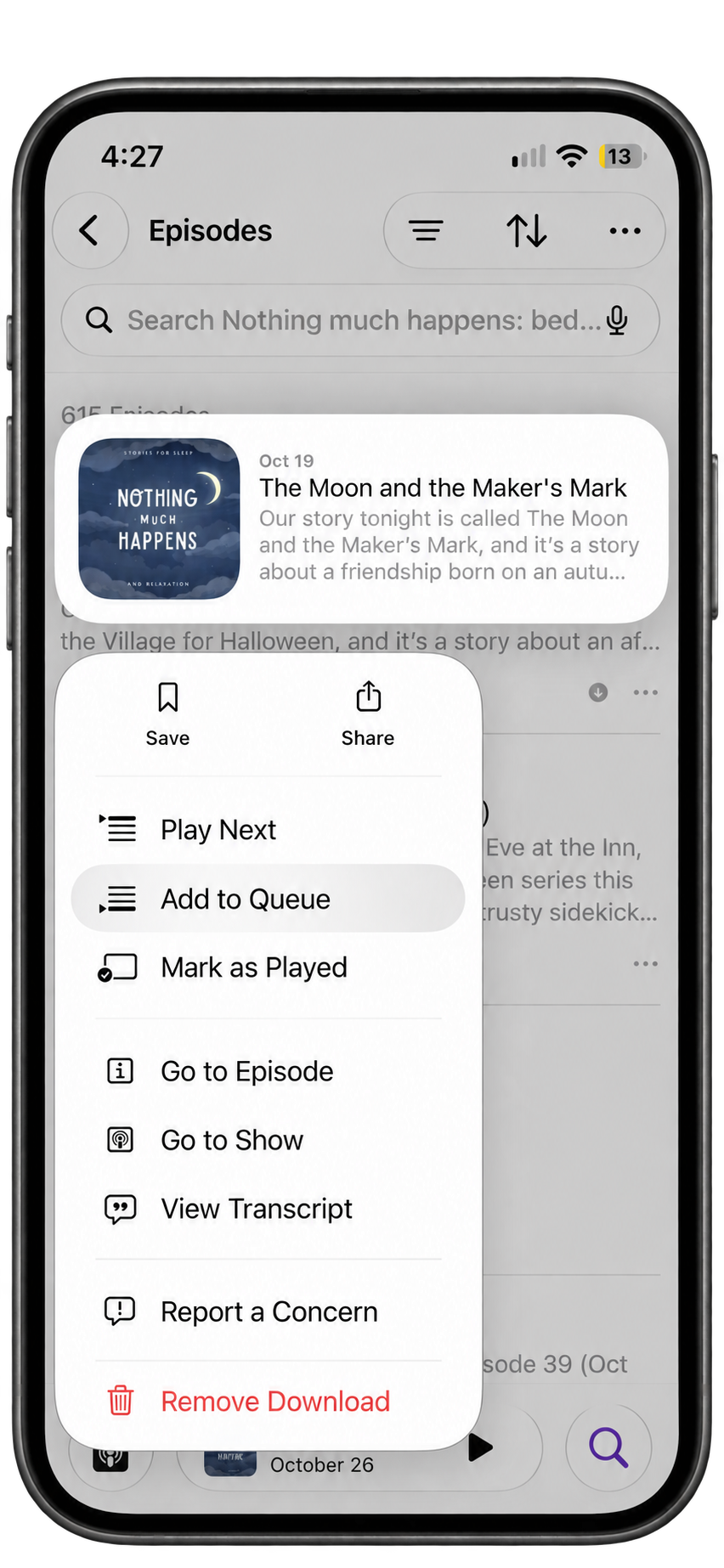
Choose and arrange what plays next
A queue is your list of episodes waiting to play.
- Beside an episode, tap More (…). Choose Play Next to hear it next, or Add to Queue to put it in your listening list.
- Tap the small player near the bottom of the app, then tap Playing Next to see the queue.
- In Queue, hold an episode’s reorder handle and drag it up or down.
- To remove one, swipe left and tap Remove.
Apple may show a separate Continue Playing list after your queue. Use a sleep timer if you want playback to stop.

Save a listening collection
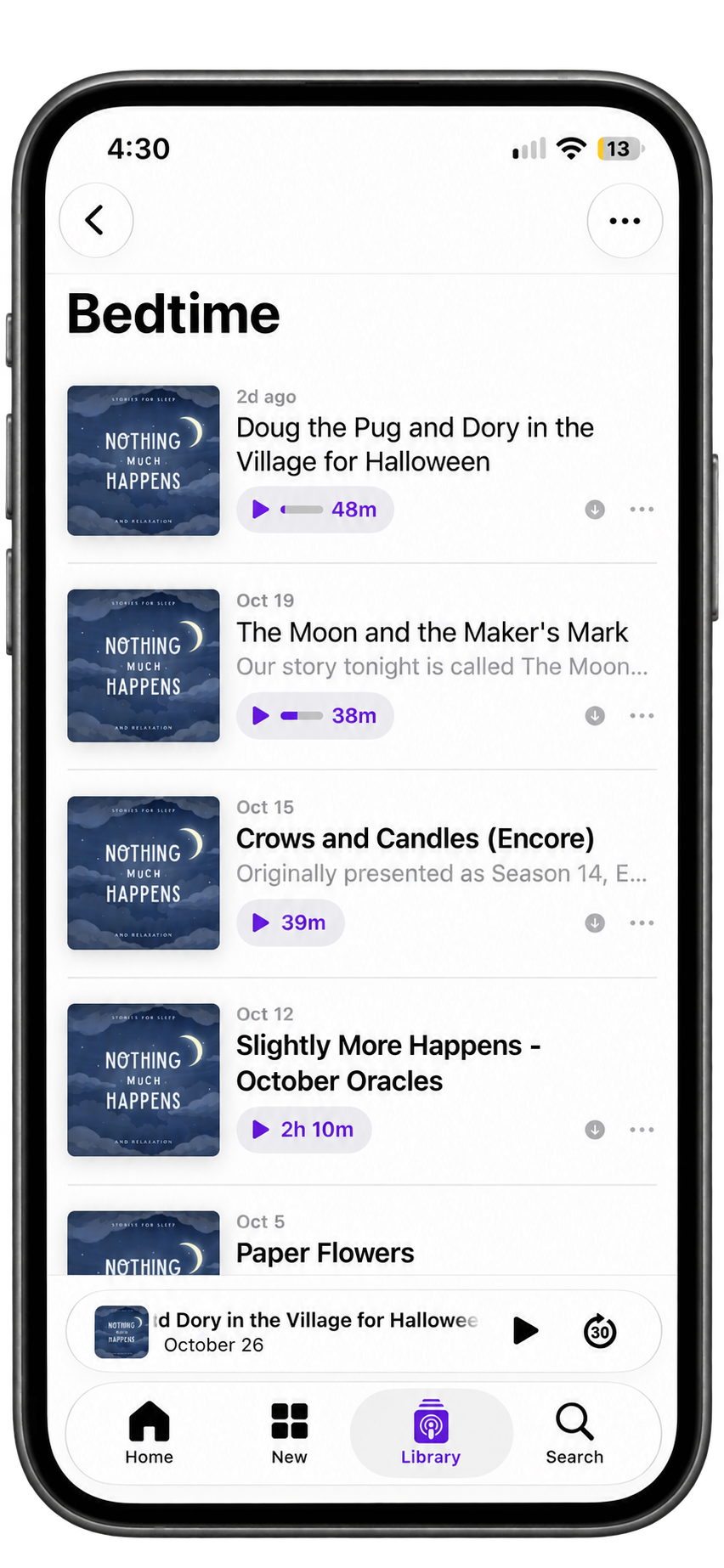
For a handpicked run of episodes, use your queue. Apple also offers stations: collections that automatically gather episodes from shows you follow.
- Follow the show first. Open Library and tap More (…).
- Choose New Station and give it a name, such as “Bedtime.”
- Tap Choose Shows, select Nothing Much Happens, then tap Done.
A station is different from a playlist of individually chosen episodes. If your version doesn’t show New Station, use the queue instead.

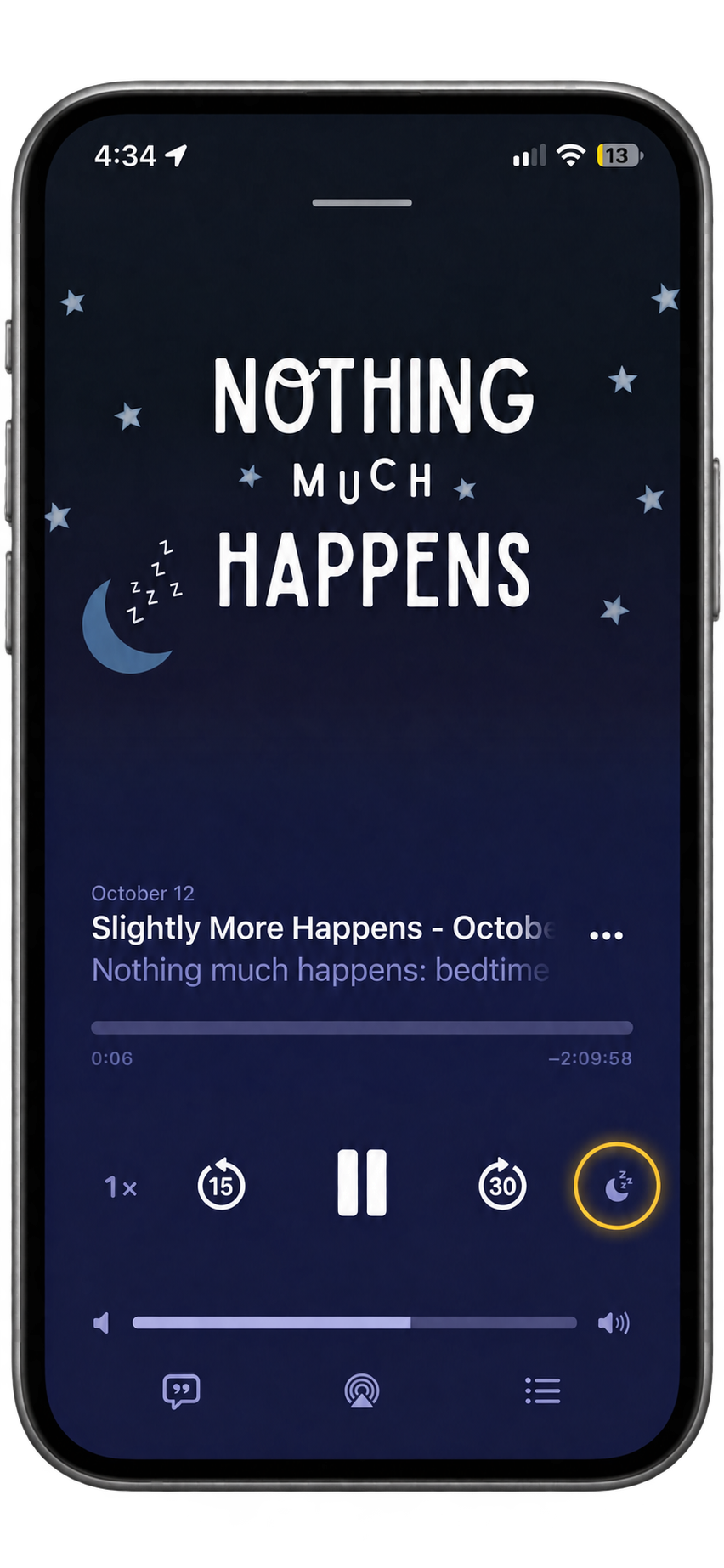
Set a sleep timer—or stop after this episode
- Start your episode. Tap the small player to open Now Playing.
- Tap the Sleep Timer control.
- Choose a duration, or the option to stop when the current episode ends.
That’s it. Your story can keep you company without another episode starting afterward.
On iPad: open the small player to reach Now Playing, then look for Sleep Timer. The layout is wider than on iPhone.

Spotify
These steps are for the mobile app. On iPhone, the More menu usually has horizontal dots (…); on Android, look for vertical dots (⋮).
Just want one story tonight? Start an episode, open Now Playing, and choose the sleep timer’s end-of-episode option.
Find and follow Nothing Much Happens
- Open Spotify and search for Nothing Much Happens.
- Open Nothing much happens: bedtime stories to help you sleep, or use the button below.
- Tap Follow on the show page. If you’re already following, there’s nothing else to do.
Following helps you return to the show in your library. It does not subscribe you to NMH’s paid ad-free offering.
Open in Spotify ↗Choose and arrange what plays next
Account note: Spotify’s current help labels mobile queue controls as Premium. Availability can differ for podcast episodes and accounts; if a control is missing, use a playlist or start the next episode directly.
- Open an episode’s More (… / ⋮) menu and choose Add to Queue, if available.
- Open the player at the bottom of the app, then tap Queue.
- Hold the reorder handle beside an item and drag it into place.
- Remove unwanted items from the queue before settling in.
Desktop: the Queue button is beside the play bar. Add an episode through its More menu; drag queued items to reorder them.
Make a playlist of favorite episodes
A playlist saves your favorites so you can return to them another night.
- Tap Create (+) → Playlist. Name it something familiar, such as “My bedtime stories,” and tap Create.
- Find an episode, open its More (… / ⋮) menu, and choose Add to playlist.
- Choose your playlist and confirm with Done if prompted. Repeat for other episodes.
- Return to the playlist in Your Library.
To arrange episodes, open the playlist’s Edit control and drag the handles. Spotify labels manual mobile reordering as Premium only. If Create is hidden, restore it through Spotify’s Create-button settings.
Set a sleep timer—or stop after this episode
- Start the episode and tap the bottom player to open Now Playing.
- Look for the Sleep Timer control, often shown as a moon. If it isn’t visible, check More (… / ⋮).
- Pick a duration, or the option to stop at the end of the episode. The label may say “End of track.”
- Look for confirmation that the timer is set.
Spotify also supports sleep-timer control on desktop and Wear OS. These instructions show mobile; the web player’s controls can differ. Check the timer when starting a new listening session.
Hello, World!
A little more help?
If your screen looks different, you haven’t done anything wrong. App updates can move buttons around. Try updating your app, or email us for listening help.
Tell us which app and device you use. A screenshot can help; please leave out any payment or sign-in details.